
Installing APK files on Android is easy, but you should always do it the right way. Many Android users download APK files to access apps that are unavailable in their region, test beta versions, or install older app versions. However, downloading APKs from unknown websites can expose your device to malware, fake apps, or privacy risks.
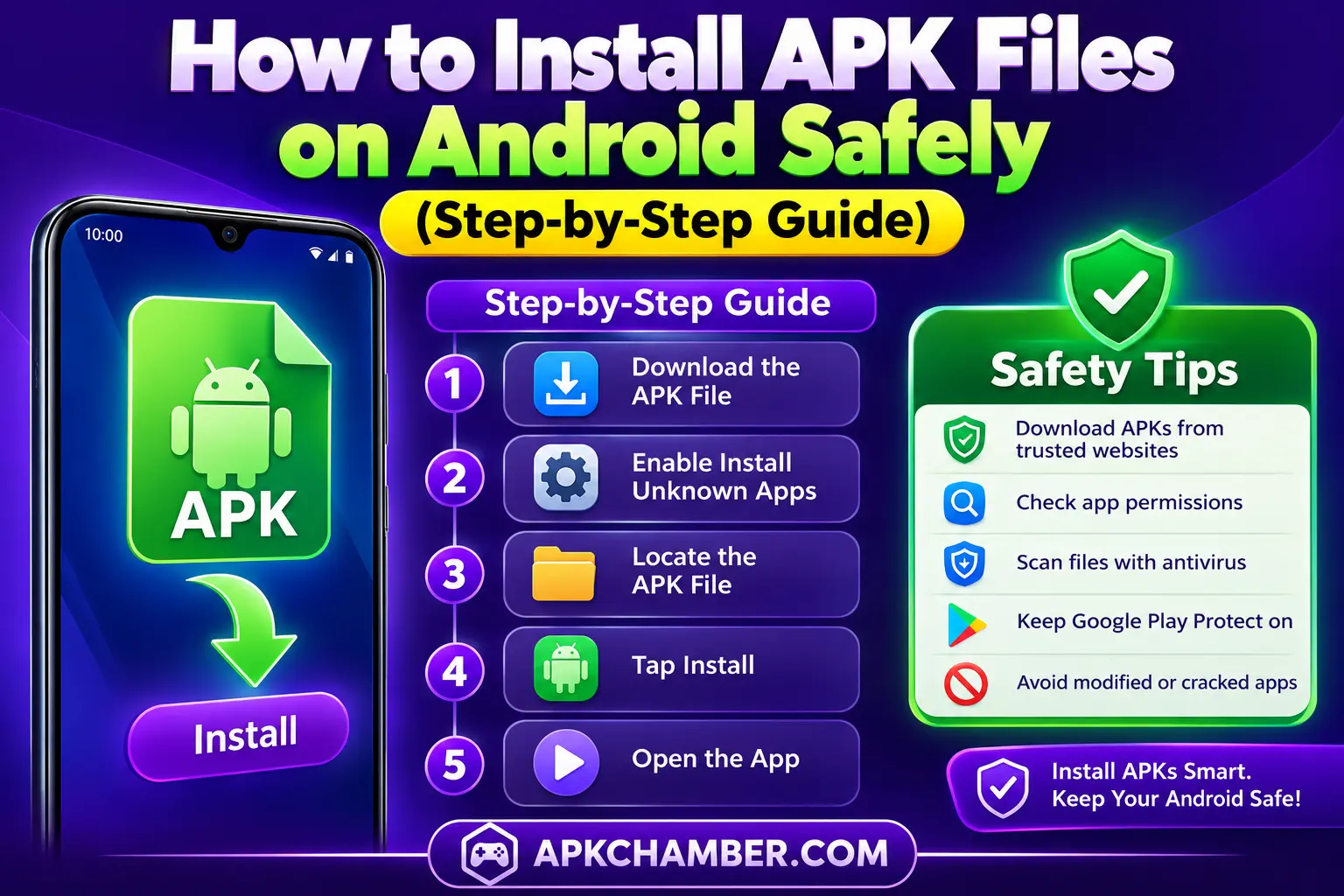
To install an APK on Android safely, download the APK from a trusted source, enable “Install Unknown Apps” for your browser or file manager, tap the APK file, and follow the on-screen installation steps. Always scan APKs for malware and check app permissions before installing. In this guide, you will learn how to install APK files on Android safely, what APK files are, the benefits and risks, and the best practices to keep your phone secure.
Table of Contents
• What Is an APK File?
• Why Do People Install APK Files?
• Is It Safe to Install APK Files?
• Requirements Before Installing an APK
• Step-by-Step Guide to Install APK Files
• How to Update an APK
• How to Uninstall an APK App
• Common APK Installation Errors and Fixes
• Tips to Install APKs Safely
• Benefits of Installing APK Files
• Risks of Installing APK Files
• Best Practices for APK Installation
• Avoid These Mistakes
• Why Download APKs from APKChamber?
• FAQs
What Is an APK File?
An APK (Android Package Kit) is the file format Android uses to install applications. It works like an .exe file on Windows or a .dmg file on macOS.
When you install an app from the Google Play Store, Android automatically downloads and installs the APK in the background. If you download the APK yourself, you need to install it manually.
Why Do People Install APK Files?
There are several reasons why Android users choose to install APK files manually:
- Access apps unavailable in their country.
- Install older versions of apps.
- Try beta releases before their official launch.
- Download apps that have been removed from the Google Play Store.
- Install open-source Android applications.
- Update apps manually without waiting for the Google Play Store rollout.
Is It Safe to Install APK Files?
Yes, installing APK files can be safe, but only if you download them from a trusted website.
Before installing any APK:
- Download from reputable APK websites.
- Avoid modified apps unless you understand the risks.
- Check app permissions before installing.
- Scan APK files with antivirus software.
- Keep Google Play Protect enabled.
Never install APKs from suspicious websites promising free premium apps or unlimited game resources.
Requirements Before Installing an APK
Before you begin, make sure you have:
| Requirement | Why It Matters |
|---|---|
| Android phone or tablet | Required for installation |
| APK file | Download from a trusted source |
| Enough storage | Prevent installation errors |
| Stable battery | Avoid interruption |
| Internet connection | Some apps need online verification |
Step-by-Step Guide to Install APK Files on Android
Step 1: Download the APK File
Download the APK from a trusted website such as APKChamber.com or another reliable source.
After downloading, the file is usually saved in your Downloads folder.
Step 2: Enable “Install Unknown Apps”
Android blocks installations from browsers and file managers by default.
To allow installation:
- Open Settings.
- Tap Apps.
- Select your browser or file manager.
- Tap Install Unknown Apps.
- Enable Allow From This Source.
This permission only applies to the selected app.
Step 3: Locate the APK
Open your:
- Downloads folder
- File Manager
- Files app
Tap the APK file.
Step 4: Install the APK
Android will display the permissions requested by the app.
Review them carefully.
Tap Install.
Wait a few seconds for the installation to complete.
Step 5: Open the App
Once installation finishes:
- Tap Open
- Or find the app in your app drawer
If everything went well, the app is ready to use.
How to Update an APK
Updating manually is simple.
- Download the latest APK version.
- Open the new APK.
- Tap Update or Install.
- Android replaces the old version while keeping your data (in most cases).
How to Uninstall an APK App
Removing an APK-installed app is the same as uninstalling any Android app.
Method 1: Settings
- Open Settings.
- Tap Apps.
- Select the app.
- Tap Uninstall.
Method 2: Home Screen
- Press and hold the app icon.
- Tap Uninstall.
Common APK Installation Errors and Fixes
| Error | Solution |
|---|---|
| App not installed | Remove the older conflicting version or free storage. |
| Parse error | Download the APK again or use a version compatible with your Android device. |
| Installation blocked | Enable Install Unknown Apps. |
| Package conflicts | Uninstall the previous version first if the signatures differ. |
| Storage full | Delete unnecessary files and try again. |
| Incompatible version | Download an APK that supports your Android version and processor architecture. |
Tips to Install APKs Safely
- Download APKs only from trusted websites.
- Read user reviews before downloading.
- Avoid modified or cracked apps.
- Scan downloaded files with antivirus software.
- Keep Android updated.
- Enable Google Play Protect.
- Check requested permissions before installing.
- Delete APK files after installation if you no longer need them.
Benefits of Installing APK Files
- Access apps before the Google Play Store release
- Download region-locked apps
- Install previous app versions
- Update apps manually
- Enjoy greater flexibility
- Test Android apps before wider availability
Risks of Installing APK Files
- Malware
- Fake applications
- Data theft
- Privacy concerns
- Installation failures
- Compatibility issues
Best Practices for APK Installation
For the safest experience:
- Use trusted APK websites.
- Verify app version information.
- Check file size before downloading.
- Read installation instructions.
- Keep backups of important data.
- Remove “Install Unknown Apps” permission after installation.
Avoid These Mistakes
- Downloading APKs from unknown or untrusted websites.
- Ignoring requested app permissions before installation.
- Installing outdated APK versions.
- Disabling Google Play Protect permanently.
- Installing cracked or modified apps without understanding the risks.
APK vs Google Play Store
| Feature | APK | Google Play Store |
|---|---|---|
| Installation | Manual | Automatic |
| Updates | Manual | Automatic |
| Older Versions | Available | Usually unavailable |
| Region-Locked Apps | Yes | Limited |
| Google Verification | Depends on source | Yes |
Why Download APKs from APKChamber?
Before publishing APK guides, the APKChamber team reviews version information, installation requirements, compatibility details, and available download sources. While users should always perform their own security checks, our goal is to provide clear and accurate installation information to help Android users make informed decisions.
Frequently Asked Questions
What is an APK file?
An APK file is the installation package Android uses to install apps manually.
Can I install APK files on Samsung, Xiaomi, or OnePlus phones?
Yes. Most Android phones, including Samsung, Xiaomi, OnePlus, Google Pixel, Motorola, Oppo, Vivo, and Realme devices, support APK installation. The steps are similar, although the location of the Install Unknown Apps setting may vary slightly depending on the manufacturer.
Why won’t my APK install?
Common reasons include incompatible Android versions, insufficient storage, corrupted downloads, or disabled installation permissions.
Are APK files legal?
Yes. APK files are legal. However, distributing copyrighted or modified apps without permission may violate the developer’s terms or applicable laws.
Can APK files contain viruses?
Yes. APK files from unknown sources may contain malware. Always download from trusted websites and scan files before installing.
Do APK updates delete my data?
Usually no. Installing a newer version of the same app keeps your data, provided the app is signed by the same developer.
Can I install APK files on Android 15?
Yes. Android 15 still supports APK installation, but you’ll need to allow Install Unknown Apps for the browser or file manager you’re using.
What is the difference between APK and XAPK?
An APK contains the app itself, while an XAPK includes the APK along with additional files such as OBB data or assets. XAPK files often require a compatible installer.
Disclaimer
This guide is for educational purposes only. Always download APK files from trusted sources, review app permissions, and respect the original developer’s terms and conditions.
Final Thoughts
Installing APK files is simple when you follow safe practices. Always download APKs from trusted websites, review app permissions, and keep your Android device updated. If you’re looking for verified APK guides, app information, and installation tutorials, explore more resources on APKChamber.